Stephen Scott
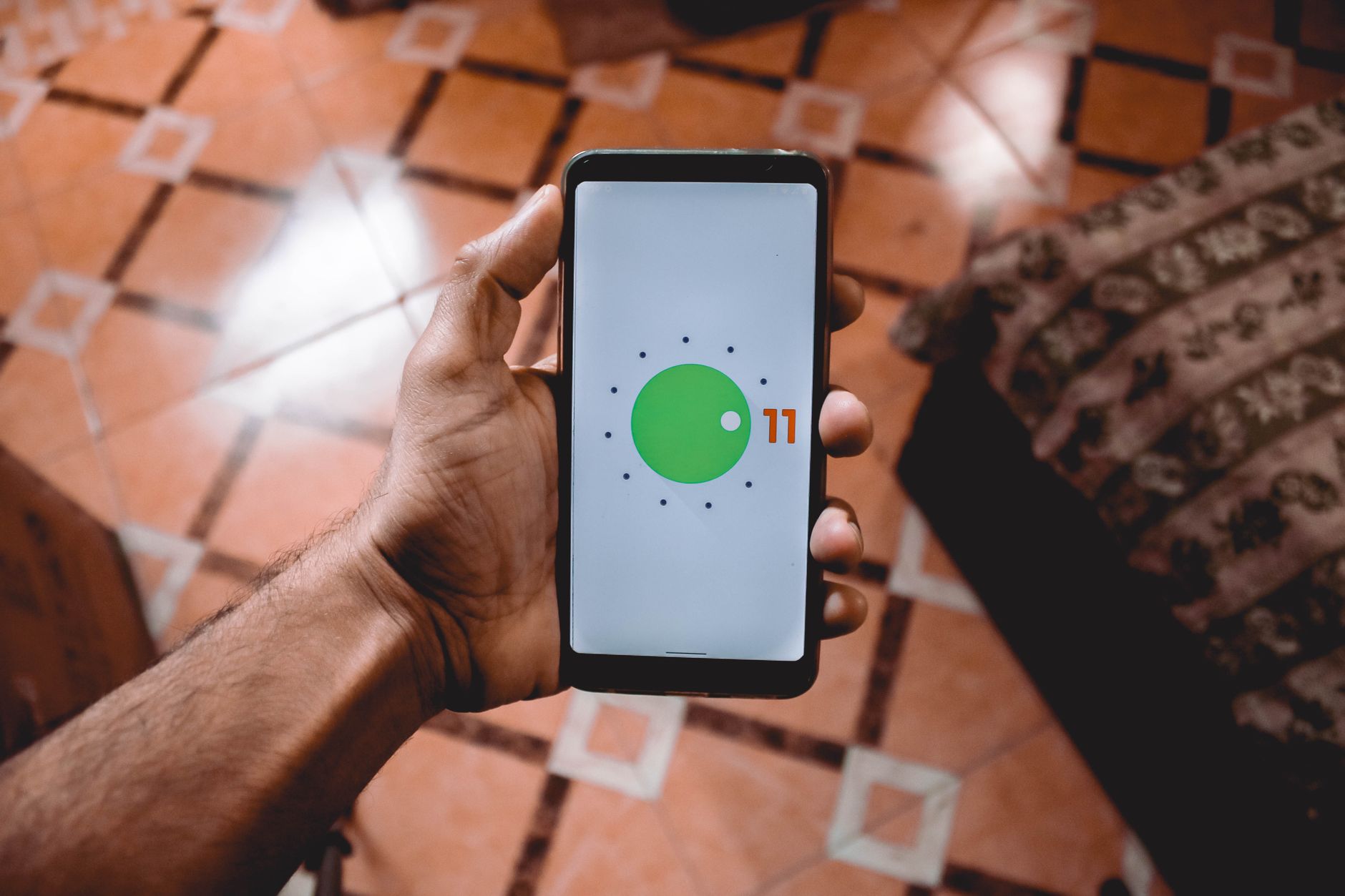
Android Auto update is essential for ensuring your device runs smoothly. In this article, we will explore how to get the latest Android Auto update instantly and resolve common problems.
What is Android Auto?
Android Auto is a mobile app designed to facilitate the use of Android devices in vehicles. It allows drivers to connect their smartphones directly to their car’s infotainment system, providing a seamless interface that enhances safety and convenience while on the road.
With Android Auto, users can access a variety of features, including:
- Navigation: Get directions and real-time traffic updates using apps like Google Maps or Waze.
- Music and Audio: Stream music from popular services such as Spotify, Pandora, or Google Play Music.
- Communication: Send and receive messages, make phone calls, and use voice commands to stay connected without taking your eyes off the road.
- Compatibility: Work with a wide range of vehicle models and manufacturers, ensuring that many drivers can enjoy the benefits.
To enjoy the latest features and improvements, it’s important to keep your app updated. The Android Auto update brings enhancements that improve functionality and fix bugs, ensuring a smoother user experience. Regular updates may also introduce new apps and compatibility options, making it essential for users to stay informed about how to get the latest version quickly and easily.
Why You Need the Latest Update
Keeping your Android Auto updated is essential for a seamless driving experience. The latest Android Auto update brings a plethora of enhancements, ensuring that you make the most of your in-car technology. Here are some reasons why staying updated is crucial:
- Improved Functionality: Each update often includes fixes for bugs and glitches that may hinder performance. An updated version ensures your system runs smoothly, providing a hassle-free experience.
- New Features: Updates frequently introduce new features that enhance usability. From improved navigation options to additional app integrations, having the latest version means you won’t miss out on valuable tools.
- Security Enhancements: With the rise in cyber threats, keeping your software updated is vital for safeguarding your personal information. The latest Android Auto update addresses potential vulnerabilities, helping to protect your data.
- Compatibility: As smartphone technology evolves, so does the need for compatibility. New updates ensure that your Android Auto works seamlessly with the latest apps and devices.
In summary, the latest Android Auto update is not just about new features; it’s about enhancing your overall driving experience, improving security, and ensuring compatibility with the ever-evolving tech landscape.
How to Check for Updates
Keeping your Android Auto up to date is essential for enjoying the latest features and ensuring optimal performance. To check for updates, follow these simple steps:
- Open the Google Play Store: Launch the app on your Android device.
- Access My Apps & Games: Tap on your profile icon in the top right corner and select “Manage apps & device.”
- Check for Updates: Under the “Updates available” section, look for Android Auto. If an update is available, you will see it listed here.
- Update the App: Tap on the “Update” button next to Android Auto to initiate the download and installation process.
If you want to ensure you receive updates as soon as they are released, consider enabling automatic updates for the app. To do this, go to the app page in the Google Play Store, tap on the three dots in the top right corner, and select “Enable auto-update.”
Additionally, it’s good practice to periodically check for system updates on your device. Navigate to Settings > System > System update to verify that your Android operating system is current, as compatibility is crucial for the Android Auto update to function effectively.
Common Issues with Android Auto
While the Android Auto update brings many enhancements, users may experience several common issues that can hinder their overall experience.
- Connectivity Problems: Users often report difficulties in establishing a stable connection between their smartphone and the vehicle. This can be due to outdated software or compatibility issues with certain car models.
- App Compatibility: Some apps may not function correctly after an update, leading to unexpected crashes or failures to launch. It’s crucial to ensure that all apps are updated to their latest versions.
- User Interface Glitches: After an Android Auto update, users might notice problems with the interface, such as unresponsive buttons or slow navigation between menus. These glitches can be frustrating and may require a reboot of the system.
- Audio Issues: Problems with audio playback, including distorted sound or complete audio dropouts, are not uncommon. This may be linked to settings on the smartphone or the vehicle’s audio system.
- Frequent Disconnections: Some users face intermittent disconnections during use, which can be disruptive. This issue may stem from Bluetooth or USB connection problems.
Addressing these common issues is essential to ensure that users can take full advantage of the latest Android Auto update and enjoy a seamless driving experience.
Best Practices for Updating
To ensure you receive the latest Android Auto update quickly and efficiently, follow these best practices:
- Enable Automatic Updates: Make sure that your device is set to automatically update apps. Go to the Google Play Store, tap on your profile icon, and navigate to Settings. Under Auto-update apps, select Over any network or Over Wi-Fi only to stay updated.
- Check Compatibility: Ensure that your vehicle’s infotainment system is compatible with the latest version of Android Auto. Visit the manufacturer’s website for details on supported versions.
- Clear Cache: Sometimes, clearing the cache for the Android Auto app can help resolve issues and speed up the update process. Go to Settings, select Apps, find Android Auto, and tap on Storage to clear the cache.
- Stay Connected: Ensure a stable internet connection when downloading updates. A weak connection can lead to interrupted downloads, which may cause issues with the application.
- Follow Official Channels: Stay informed about the latest updates by following official Android Auto channels on social media or checking the Android Auto website regularly.
By implementing these best practices, you can optimize your chances of receiving the Android Auto update promptly and enjoy the latest features and improvements.
User Experiences with Updates
User experiences with updates to Android Auto can vary significantly, as many users have reported both positive and negative encounters. Some users share their success stories after implementing the most recent update, which often enhances functionality and improves connectivity with their vehicles.
Many appreciate the seamless integration of features such as voice commands and navigation updates, which can make driving safer and more enjoyable. However, others have encountered frustrating issues post-update, including:
- Loss of connectivity with mobile devices
- Lagging or freezing of the interface
- Incompatibility with certain apps
Despite these challenges, users have developed strategies to ensure they receive the latest Android Auto update swiftly. Some recommend checking forums and online communities for tips on how to expedite the process, while others suggest enabling automatic updates on their devices.
It’s essential to remember that while the Android Auto update can enhance your driving experience, staying informed about potential issues and solutions is crucial. Users should regularly consult official sources for updates and patches, ensuring they fully benefit from the latest features without unnecessary hiccups.
Tips for Troubleshooting
When it comes to getting the latest Android Auto update, troubleshooting can sometimes be necessary to ensure a smooth experience. Here are some tips to help you resolve common issues:
- Restart Your Device: A simple restart can often resolve minor glitches. Turn off your phone completely and turn it back on to refresh the system.
- Check Your Connections: Ensure that your phone is properly connected to your car’s system. A loose or damaged cable can lead to connectivity issues.
- Clear Cache and Data: Navigate to your phone’s settings, find the Android Auto app, and clear the cache and data. This can help fix any corrupted files that might be causing problems.
- Update Your Phone’s Software: Ensure that your phone’s operating system is up to date. Sometimes, an outdated OS may prevent the Android Auto update from functioning correctly.
- Reinstall the App: If problems persist, uninstall and reinstall the Android Auto app. This can help eliminate any persistent bugs.
- Consult User Forums: Online communities often share solutions for specific issues. Look for threads related to your problem for potential fixes.
By following these troubleshooting tips, you can improve your chances of accessing the latest Android Auto update quickly and efficiently.
Conclusion: Stay Updated
Staying updated with the latest Android Auto update is essential for ensuring optimal performance and access to new features. As technology evolves, so do the systems that enhance our driving experience. By keeping your Android Auto updated, you not only benefit from improved functionality but also enhance safety and compatibility with your vehicle.
In conclusion, here are some key points to remember:
- Regular Checks: Periodically check for updates through the Google Play Store or your device settings to ensure you are on the latest version.
- Enable Automatic Updates: Setting your device to automatically download updates can save time and hassle, ensuring you never miss an important upgrade.
- Read Release Notes: Familiarize yourself with the new features and fixes included in each update to understand their benefits and how they can enhance your experience.
- Engage with the Community: Join forums and groups focused on Android Auto to share experiences, discover tips, and stay informed about the latest news.
- Backup Data: Before initiating an update, it’s wise to back up your data to prevent any loss due to unforeseen issues.
By following these practices, you can enjoy the full benefits of your Android Auto system and navigate the roads with confidence and ease.
Photo by Zain Ali on Pexels